GhanaEd GhanaEd LMS · Training
Student Manual Teacher Guide Sign In
Educator & Student Training

GhanaEd LMS

AI-Powered Learning for Ghana's Future
📚 NaCCA Curriculum (KG–SHS) 🤖 AI Lessons & Tutor 🧪 BSTEM Practicals 🏫 School Management 📶 Offline-First
Complete Training Slides · Version 2.0 · 2026
For Students, Teachers & Head Teachers · ghanaed.com
Overview

What is GhanaEd LMS?

2

GhanaEd LMS is an AI-powered, offline-first learning platform built for Ghanaian schools and fully aligned to the NaCCA curriculum from KG to SHS.
  • Works online and offline — ideal for low-connectivity areas
  • Installs like an app on phones, tablets and computers
  • AI helps teachers plan and grade; students learn with a personal tutor
  • Rich BSTEM practical activities and exam preparation
  • Complete school administration for Head Teachers
6,991
Curriculum Docs
46
Subjects
KG–SHS
All Levels
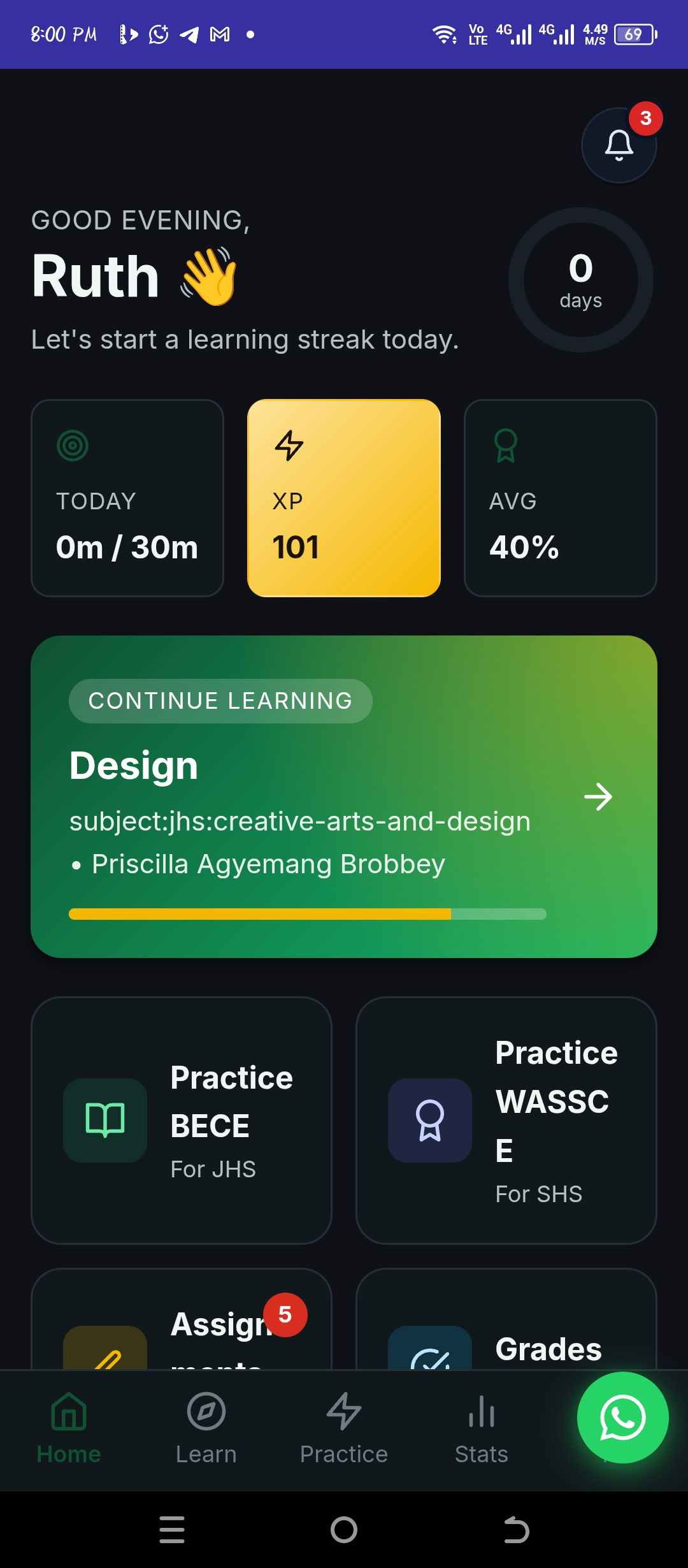
GhanaEd student dashboard
GhanaEd LMS
Part A · Everyone

Getting Started

3

Log in & install

  1. Open a browser and go to ghanaed.com, then click Sign In.
  2. Enter the username & password from your school administrator.
  3. You land on your Dashboard — your home base.
  4. Install the app: tap the "Install App" banner (or "Add to Home Screen").

Navigate the portal

  • Main pages live under the My Classroom dropdown
  • On phones, tap the menu (☰) icon
  • Tap Dashboard to return home anytime
💡 Add an email to your profile — it's the only way to recover a forgotten password yourself.
Dashboard home
GhanaEd LMS
Part B · Students

Viewing Lessons

4
  1. Tap Lessons. Use the search bar or subject filter to find a lesson.
  2. Tap a lesson card to open it.
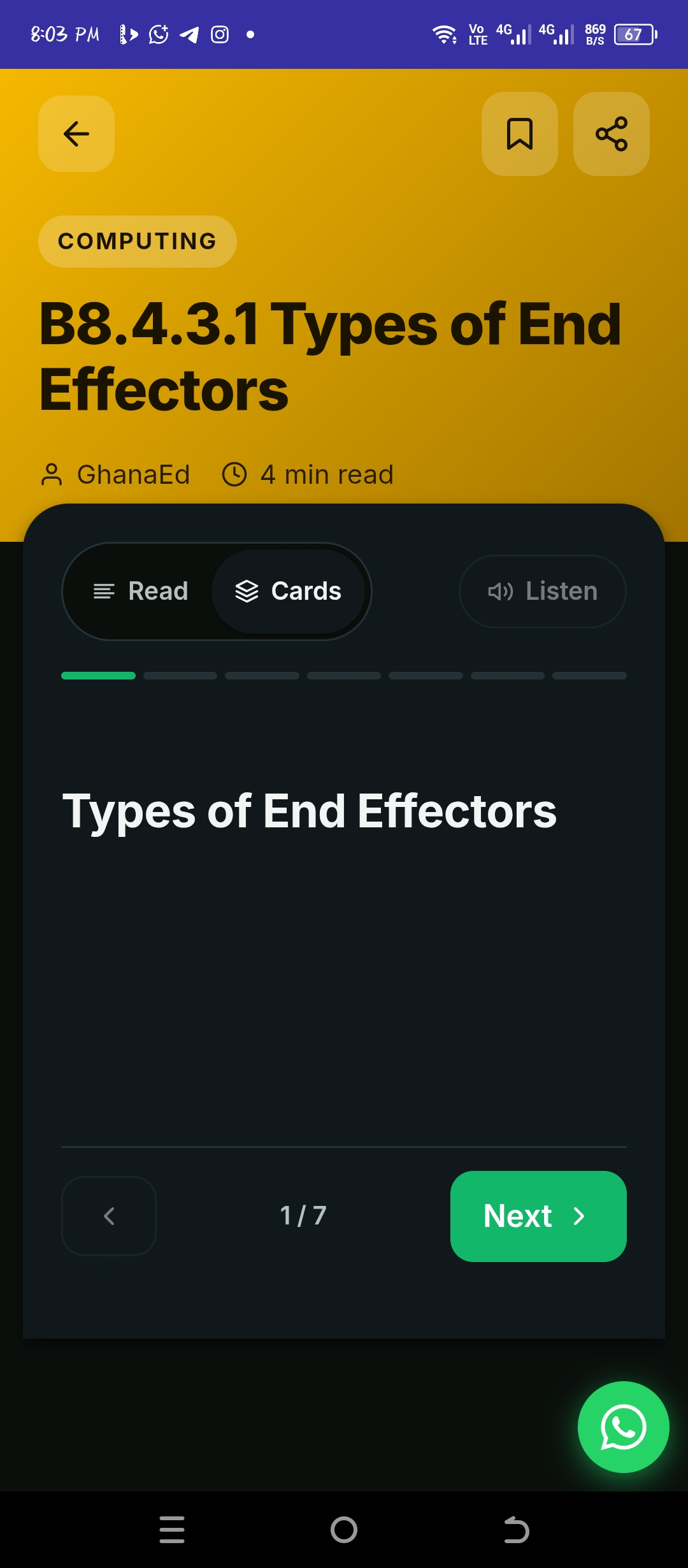
  3. Switch between Read (full text), Cards (swipeable flashcards) and Listen (audio).
  4. Tap Mark as Completed — earns 5 game points and updates progress.
🧪 BSTEM practicals are split across days (Part 1/3, 2/3…). From Day 2, be ready for a quick Mini Chalkboard recap.
Lesson viewer
GhanaEd LMS
Part B · Students

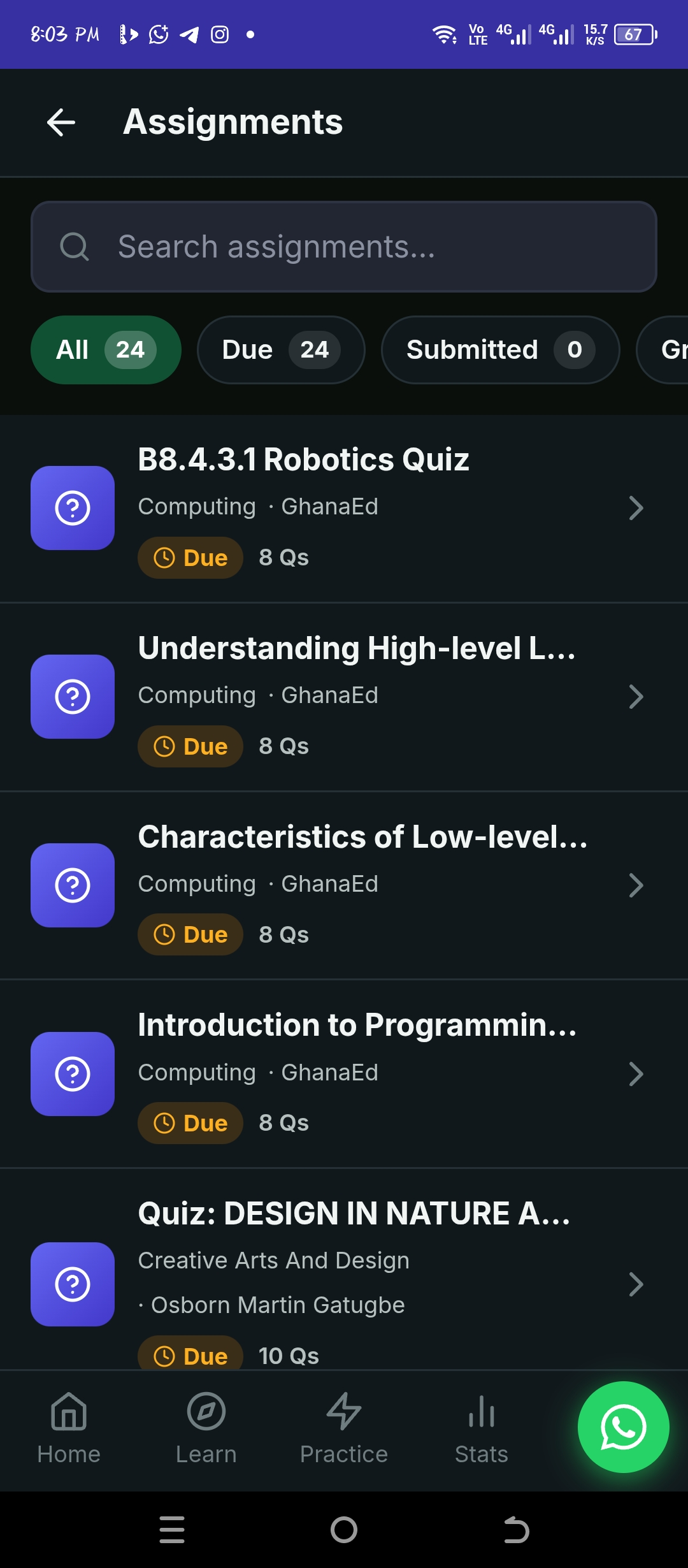
Completing Assignments

5

Written assignments

  1. Tap Assignments, open the card and read the instructions.
  2. Type your response in the text box.
  3. Tap Submit (you can submit only once — review first).

Quiz assignments

  • Quiz cards show a Quiz badge — select one answer per question
  • Tap Submit Quiz → see score, answers & explanations instantly
  • Earn 5 game points per submission
💡 Overdue assignments show in red on your Dashboard — submit early!
Assignments list
GhanaEd LMS
Part B · Students

Grades & Progress

6

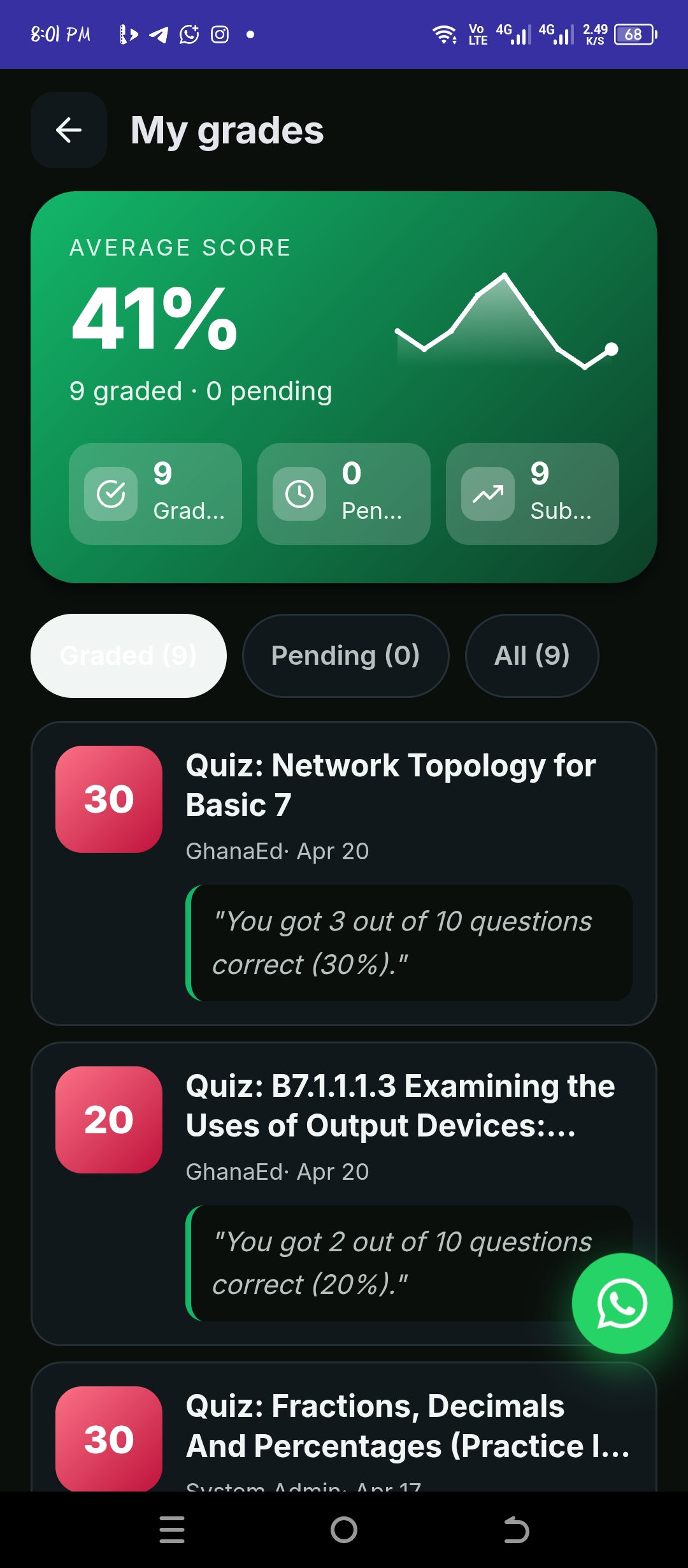
Check your grades

  1. Tap My Grades to see your average and per-subject scores.
  2. Use the tabs: Graded, Pending, All.
  3. Read each score (/100) and your teacher's feedback.

Track progress

  • Tap My Progress → progress bar of completed indicators per subject
  • Expand a subject to see strands & indicators (green tick = done)
🎨 Scores are colour-coded: green ≥70, yellow 50–69, red below 50.
My grades
GhanaEd LMS
Part B · Students

BECE & WASSCE Prep

7
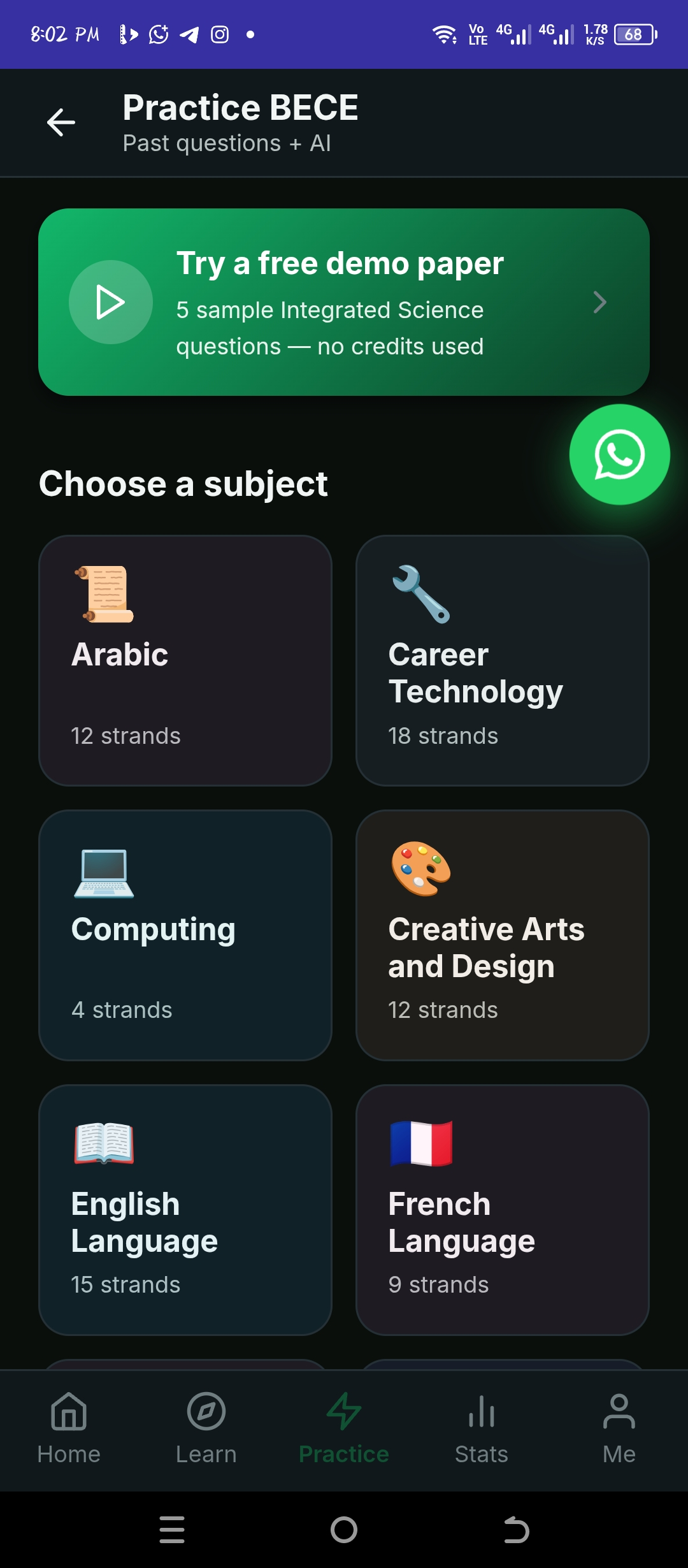
  1. From the Dashboard tap Practice BECE (JHS) or Practice WASSCE (SHS).
  2. Choose a subject — see predicted high-priority topics.
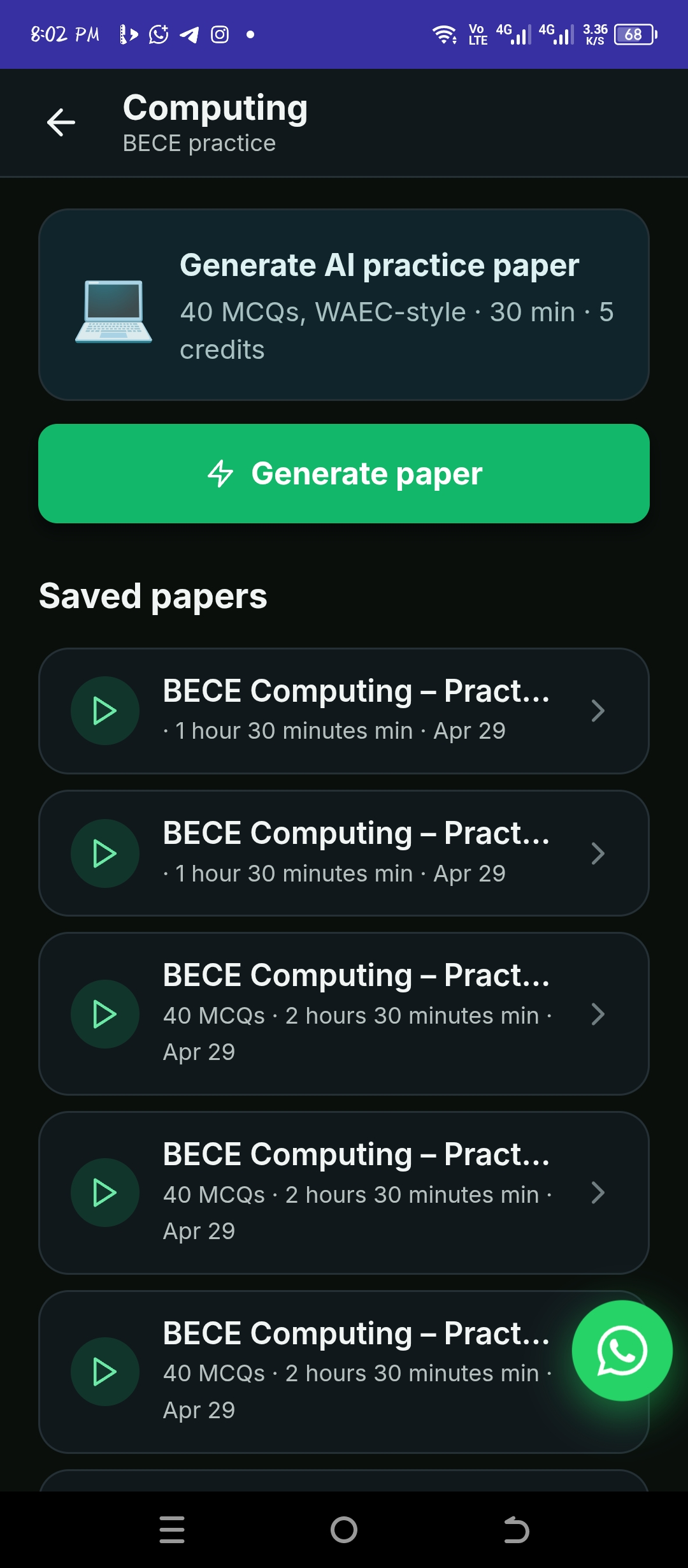
  3. Tap Generate paper for a full WAEC-style paper (40 MCQs, ~30 min, 5 credits).
  4. Answer at your pace, then submit for instant AI grading with explanations.
▶️ Try the free demo paper first — sample questions, no credits used.
Practice BECE — choose subject
Generate AI paper
GhanaEd LMS
Part B · Students

AI Tutor, Points & Rewards

8

AI Tutor

  • Open any lesson → use the AI Tutor below the content
  • Ask anything: "Explain simply", "Give an example", "Quiz me"

Earn game points

  • +5 complete a lesson · submit a quiz/assignment · finish a practice paper
  • +10 referral bonus when a friend signs up with your link
  • Redeem 50 points → 5 credits for AI features
🏆 Climb the Top Learners leaderboard (This Week / Month / All Time) on your Profile.
Dashboard XP and streak
GhanaEd LMS
Part C · Teachers

Your Teacher Home

9

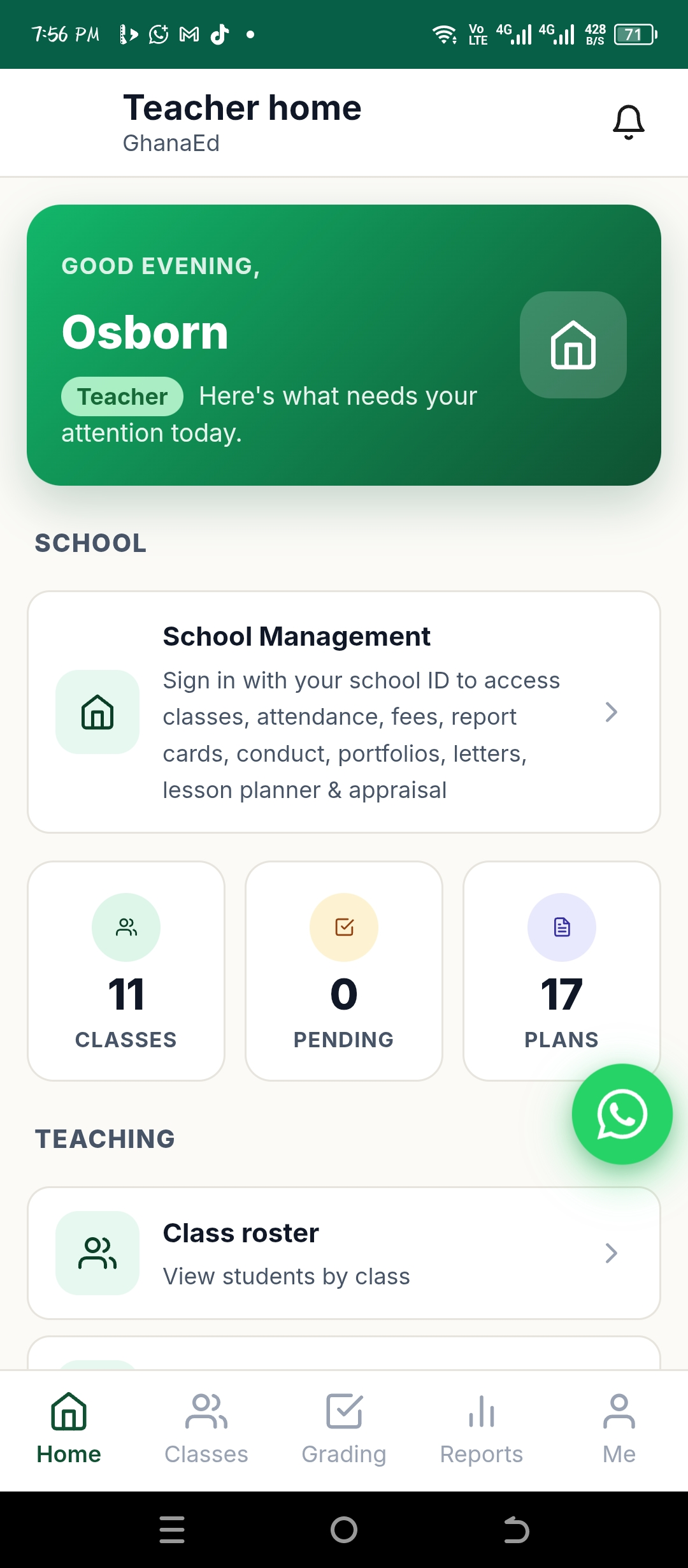
After logging in as a teacher you see your Teacher Home with quick stats — Classes, Pending grading, and Lesson Plans — plus a School Management entry.
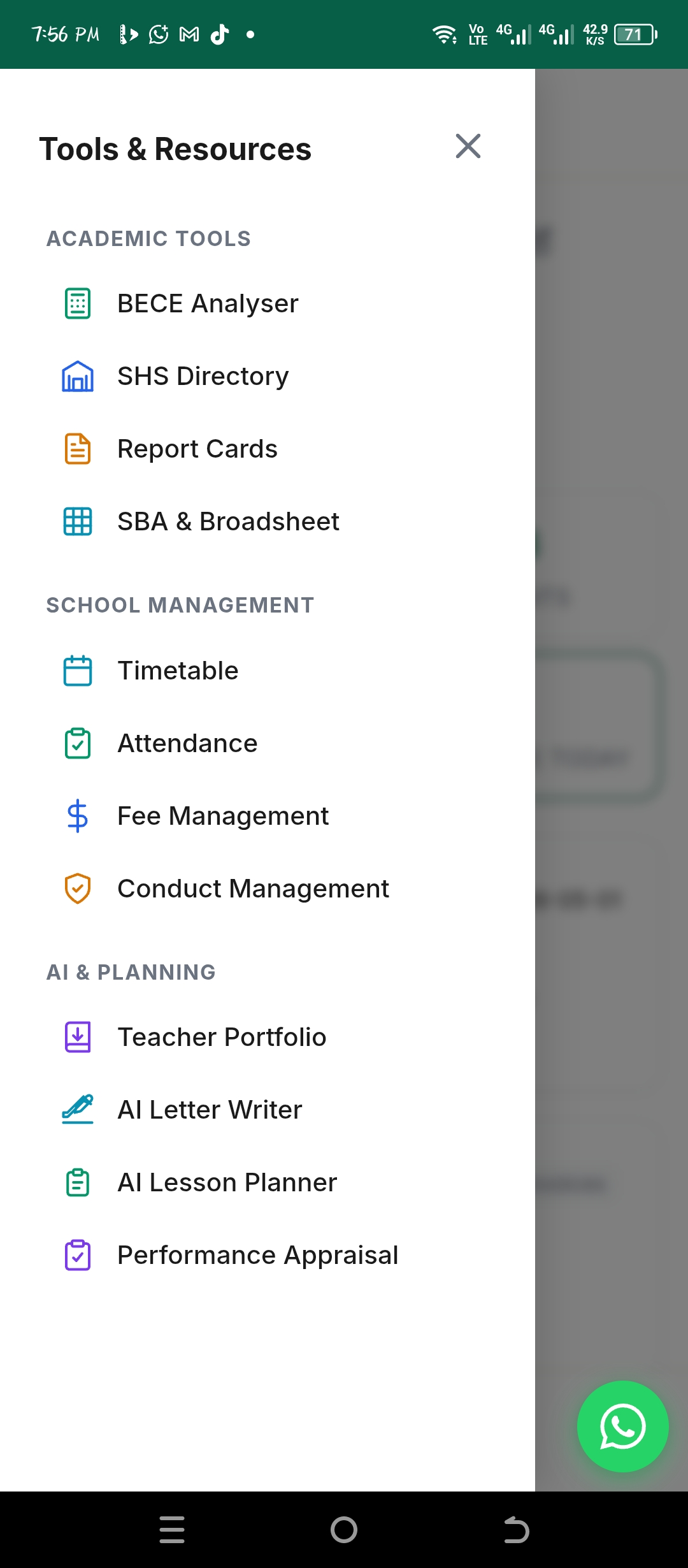
Tools & Resources menu

  • Academic: BECE Analyser, SHS Directory, Report Cards, SBA & Broadsheet
  • School: Timetable, Attendance, Fee Management, Conduct
  • AI & Planning: Teacher Portfolio, AI Letter Writer, AI Lesson Planner, Performance Appraisal
💡 Open the menu (☰) anytime to reach every teaching and admin tool in one place.
Teacher home
Tools menu
GhanaEd LMS
Part C · Teachers

Creating Lessons

10

Option A — Manually

  1. Lessons → + New Lesson.
  2. Add a title, choose a subject, write content in the editor.
  3. Click Save Lesson — instantly available to students.

Option B — With AI

  1. Click Create with AI to open the wizard.
  2. Enter the topic, subject and a NaCCA content standard.
  3. Click Generate → review → accept or regenerate (fully editable).
Lesson content
GhanaEd LMS
Part C · Teachers

Lesson Planner & BSTEM

11

Plan a term, attach materials

  1. Open Lesson Planner → build a Daily Series or Scheme of Work.
  2. On each day card click + Note · + Quiz · + Task (5 credits each).
  3. Use ⚡ Bulk to generate for the whole term — confirm the cost, watch live progress.
  4. Publish drafts so students can see them.

🧪 BSTEM Activity Library

  • 49 NaCCA-aligned practical activities (Primary & JHS)
  • Multi-session lessons with Starter / Main / Plenary structure
  • Mini Chalkboard recap & grouping-aware framing built in
AI Lesson Planner
GhanaEd LMS
Part C · Teachers

Quizzes & Grading

12

Generate a quiz

  1. Open a lesson → tap Generate Quiz (10 questions).
  2. Review, toggle Show Answers, then Send as Assignment (auto-graded).

Grade with AI assistance

  1. Assignments → submission → AI Grade.
  2. Review the suggested grade, feedback, strengths & improvements.
  3. Accept or modify before saving — you always have the final say.
💡 Quizzes are auto-scored on submit; you can still override any score.
Assignments and quizzes
GhanaEd LMS
Part C · Teachers

Track, Discuss & Communicate

13

Student Progress

  • Student Progress → click a student for a subject-by-subject breakdown
  • Identify gaps early — review weekly

Discussion Board

  • Discussions → New Topic for announcements & homework Q&A
  • Pin, Lock, Mark Best Answer; students upvote & react

Letters & Messages to the Head

  • My Letters — formal, categorised, tracked (Submitted → Responded)
  • Messages — quick real-time chat with your Head Teacher
Teacher home classes and plans
GhanaEd LMS
Part D · Head Teachers

School Setup & Classes

14

Get your school running

  1. Receive your School ID & admin credentials, then log in to School Management.
  2. Edit School Profile — set the display name shown on report cards & timetables.
  3. Click Create Class — curriculum subjects are added automatically by level.
  4. Open a class card to access 6 tabs: Students · Subjects · Assessment · Attendance · Master Sheet · Report Cards.
⚠️ Deleting a class permanently removes its students, subjects, assessments and report cards.
School management
GhanaEd LMS
Part D · Head Teachers

Assessment, Attendance & Report Cards

15

Assessment

  • Assessment tab → Create Assessment Sheet (set reopening date & GES scheme)
  • Click a subject → enter Class & Exam scores; view the Master Sheet

Attendance

  • Attendance tab → enter Total School Days & Days Present (absences auto-calc)

Report Cards

  • Generate Report Cards → edit conduct, attitude, interest & promotion
  • Print (A4) or Generate Print Link to share with parents (no login)
Report cards tools
GhanaEd LMS
Part D · Head Teachers

Leadership Tools

16
  • Teacher Performance — full ranking (attendance, lesson-prep, output) by term/year
  • Letters Inbox — read & respond to teacher letters (New → In Review → Responded → Archived)
  • Portfolio Reviews — rate each teacher's NTC portfolio (Target / Approaching / Below)
  • AI Term Report (10 credits) — generate a District-Director report from live school data
  • Messages — chat with any teacher; fees & timetables managed centrally
🔒 Privacy: Heads see school-wide data; teachers see only their own letters, portfolios & chats.
School management tools
GhanaEd LMS
Part E · Everyone

Free Public Tools

17

BECE Analyser (/bece-analyser)

  • Enter grades → automatic aggregate + rating
  • AI ranks 9 SHS programmes with career paths
  • Simulate CSSPS with real placement rules (7 choices)

SHS Pathways

  • Placement band, WASSCE subjects, readiness, university & career paths

SHS Directory (/shs-directory)

  • Search/filter every Ghana SHS by region, category, type & gender
Public tools in menu
GhanaEd LMS
Part F · Reference

Credits & Pricing

18

What costs credits

FeatureCredits
AI Lesson Plan (full series)10
Generate AI Lesson (single)5
Note / Quiz / Task on a plan5 each
Quick Quiz (standalone)3
AI Auto-Grade2
AI Tutor (per message)1
BECE / WASSCE Paper5
AI Term Report (Head)10

Credit packages

PackageCreditsPrice
Starter50GHS 5
Basic150GHS 12
Standard500GHS 35
Premium1,200GHS 60
Mega3,000GHS 120
🎁 New accounts get 20 free credits. Students can convert 50 points → 5 credits.
GhanaEd LMS
Reference

Where to Find Everything

19
I want to…Go to…
Read a lesson (student)My Classroom → Lessons
Submit homework (student)My Classroom → Assignments
Practise for BECE/WASSCEDashboard → Practice BECE / WASSCE
Create a lesson (teacher)Lessons → +New / Create with AI
Build a term plan (teacher)Lesson Planner
Grade work (teacher)Assignments → submission → AI Grade
Create a class (admin)School Management → Create Class
Enter scores / attendance (admin)Class → Assessment / Attendance tab
Generate report cards (admin)Class → Report Cards tab
Teacher rankings / letters (head)Leadership → Performance / Letters
Check BECE aggregate (anyone)/bece-analyser
Find an SHS (anyone)/shs-directory
GhanaEd LMS
Thank You

Let's Get Started!

Building Ghana's Future, One Lesson at a Time
Install the app today Explore the Curriculum Try an AI lesson & BSTEM lab
Visit ghanaed.com · Student Manual · Teacher Guide · Documentation
GhanaEd by Somnia Osbrain Foundation · Support: info@ghanaed.com